Qt Virtual Keyboard: Getting On-Screen Input Right on Embedded Devices
How the Qt Virtual Keyboard gets into an embedded HMI: input method integration, layouts and languages, matching your own design – and the licensing question to settle first.
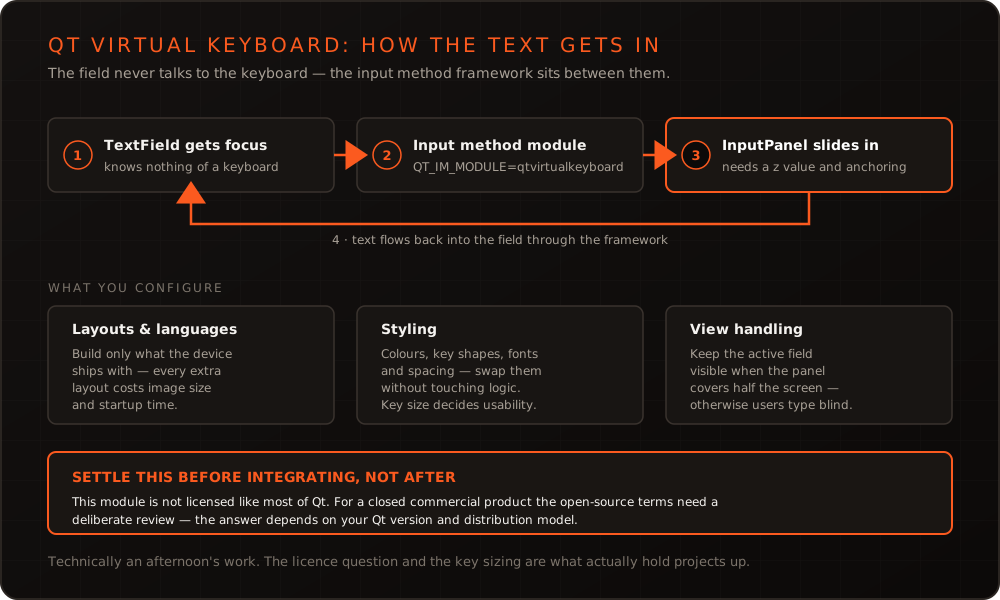
In short: An embedded device with a touch display needs an on-screen keyboard the moment any text gets entered – a Wi-Fi password, a device name, a setpoint. The Qt Virtual Keyboard provides that ready-made, including layouts, languages and integration with Qt’s input system. The technical integration is an afternoon’s work. The question to settle beforehand is licensing: this module does not come under the same terms as most of Qt.
The licensing question first
Most Qt modules are licensed such that they can be used in commercial products with dynamic linking comparatively straightforwardly. The Qt Virtual Keyboard is among the modules where that does not hold across the board – its open-source variant comes under stricter terms that can have consequences for a closed product.
That is no reason to avoid the module; it is a reason to ask the question early. The concrete answer depends on your Qt version, your distribution model, and whether you hold a commercial Qt licence anyway. Settle it with The Qt Company or legal advice before the keyboard is firmly anchored in the interface – replacing it later is markedly more expensive than deciding at the start. (This is a technical framing, not legal advice.)
How the integration works
Qt separates input methods from input fields. A TextField knows nothing about a keyboard – it only reports that it has focus. An input method module then decides what happens. On the desktop the operating system handles that; on an embedded device without a windowing system there is nobody to do it – which is precisely the role the Qt Virtual Keyboard fills.
It is activated through an environment variable that must be set before the application is constructed:
int main(int argc, char *argv[])
{
    qputenv("QT_IM_MODULE", QByteArray("qtvirtualkeyboard"));
    QGuiApplication app(argc, argv);
    // …
}
Alternatively through the service environment, which is often cleaner for a systemd-based device:
export QT_IM_MODULE=qtvirtualkeyboardThe QML scene then needs an InputPanel to present the keyboard. It is typically anchored to the bottom edge and reveals itself once an input field takes focus:
import QtQuick
import QtQuick.VirtualKeyboard

Item {
    id: root

    TextField {
        id: nameField
        anchors.centerIn: parent
        placeholderText: qsTr("Device name")
    }

    InputPanel {
        id: inputPanel
        z: 99
        anchors.left: parent.left
        anchors.right: parent.right
        // Park below the screen and slide in only when needed
        y: root.height - (active ? height : 0)

        Behavior on y {
            NumberAnimation { duration: 150; easing.type: Easing.InOutQuad }
        }
    }
}
Three details decide whether this holds up in daily use. The z value keeps the keyboard above the rest of the interface – without it, it disappears behind background surfaces. The bottom anchoring with animation is the expected behaviour; a keyboard that simply appears feels abrupt. And keeping the field in view: if the keyboard occupies the lower half of the screen, the active field has to stay visible – otherwise the user types blind.
Layouts, languages and size
The keyboard ships layouts for many languages, plus optional handwriting recognition. For a device serving two languages in the field it makes sense to restrict the build to exactly those – every extra layout costs image space and startup time. The selection happens through configuration switches when building the module; in a Yocto-based image that decision belongs in the recipe, not in an afterthought script.
Conversely: a device shipped worldwide whose users should enter names in their own script needs the corresponding layouts – and a concept for how the user switches between them without getting lost.
Matching your own design
An unmodified default keyboard inside an otherwise carefully designed interface stands out immediately. The module ships its own styling system for this: colours, key shapes, font sizes and spacing can be replaced without touching the input logic. Your own style is selected through an environment variable and ships as a QML resource in the application build.
What tends to be underestimated is key size. On a 7-inch display operated with gloves, the default dimensions are too small; that only surfaces in field testing when input errors appear. This question belongs at the beginning, because it shapes the layout of the entire input mask.
When it does not work
| Symptom | Likely cause |
|---|---|
| Keyboard never appears | QT_IM_MODULE not set, or set too late |
| Keyboard present but invisible | Missing z value, sits behind other elements |
| Input field gets covered | View not scrolled while the keyboard is active |
| Wrong layout | Desired language not compiled in |
| Keys respond sluggishly | Too many animations or missing hardware acceleration |
| Keyboard loads although never needed | Module included without any field existing |
That last point is worth a look when boot time is tight: a device that needs text entry only during initial commissioning does not have to keep the keyboard ready on every start.
Conclusion
Technically the Qt Virtual Keyboard is an undramatic affair: set the environment variable, place the InputPanel, handle focus and visibility cleanly. The two things that actually hold projects up lie elsewhere – the licensing question, which belongs before integration, and the design, which wants deciding early because it shapes the layout of your input masks. How Qt interfaces stay smooth on constrained hardware in general is covered in Qt in embedded environments; we teach the groundwork in our Qt and QML training. If you are planning an HMI and the input paths are still open, talk to us.
Frequently asked questions
- What licence applies to the Qt Virtual Keyboard?
- This is the key point before integration: the module is not under the same licence as most of Qt. For a commercial product a deliberate review is needed as to whether the open-source terms are workable or a commercial Qt licence is required. The answer depends on your Qt version and distribution model – settle it with The Qt Company or legal advice before the keyboard lands in the product, not after.
- Why doesn't the keyboard appear even though everything is wired up?
- Almost always the `QT_IM_MODULE=qtvirtualkeyboard` environment variable is missing, or the application sets it too late – it must be in place before QGuiApplication is constructed. Second most common: there is no `InputPanel` element in the QML scene, or it sits behind other elements and is covered. A `z` value and the right parent fix that.
- Can we match it to our product's look?
- Yes. The keyboard ships its own styling system through which colours, key shapes, fonts and spacing can be replaced without touching the logic. In practice it pays to do this early: a default keyboard inside an otherwise carefully designed interface stands out immediately.
- What does the keyboard cost in memory and startup time?
- Noticeably, if you include every language layout and handwriting recognition. For a device serving one or two languages it pays to restrict the build to the layouts actually needed – that reduces both the image and the time to first display.
More on these topics
Managing Director, bitshift dynamics
Builds hardware-adjacent software for embedded products with his team – C++, Qt/QML, Embedded Linux and the Yocto Project. bitshift dynamics has worked in this field since 2005.