EGLFS: Running Qt on Embedded Hardware Without a Windowing System
How Qt draws straight to the graphics hardware with EGLFS – backends, KMS configuration, input devices, and the failure patterns that help at the first black screen.
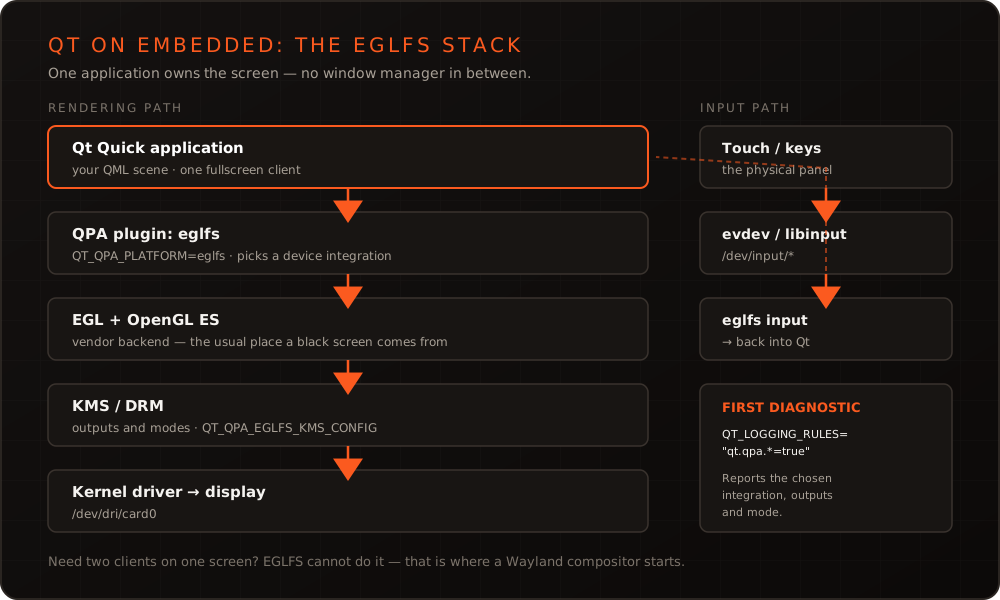
In short: An embedded device usually has no window manager, no desktop and no mouse – just one application that owns the screen outright. EGLFS is built for exactly that: the Qt platform plugin draws straight to the graphics hardware through EGL and OpenGL ES, with no X11 or Wayland in between. That saves memory, startup time and a whole layer of potential failure. The price is that you have to know the layer underneath the moment something stops working.
What EGLFS actually is
Qt talks to the operating system through a platform plugin (QPA). On the desktop that is X11, Wayland or Cocoa; on a device without a windowing system, EGLFS takes over. It acquires a drawing surface through EGL that covers the whole screen and renders Qt Quick onto it via OpenGL ES – hardware-accelerated, provided the GPU has a driver.
Selection happens through an environment variable:
export QT_QPA_PLATFORM=eglfs
./my-application
For systems with no GPU at all there is LinuxFB, which writes into the framebuffer directly and rasterizes in software. That is markedly slower and barely usable for animated interfaces, but it rescues projects on hardware without acceleration.
The backends – where it usually goes wrong
EGLFS is not one monolithic piece of code; it selects a device-specific integration. On modern SoCs that is typically the KMS/DRM variant working through the kernel’s standard interfaces. Alongside it sit vendor-specific integrations for graphics cores whose drivers take their own route.
Which integration gets loaded is decided by Qt at runtime based on what it finds on the system – and that is where the most common failure pattern comes from. If the chosen integration does not match the hardware, the application starts without an error and the screen stays black. So the first move should always be the diagnostic output:
export QT_LOGGING_RULES="qt.qpa.*=true"
./my-application
Qt then reports which integration was loaded, which outputs were found and which mode was set. In most cases that makes clear whether the problem lies with the GPU binding, the output, or permissions.
Configuring displays
Without further instruction EGLFS takes the first connected output at its preferred mode. For a product that is rarely enough – resolution, refresh rate and the question of which output gets driven at all belong nailed down. That happens through a JSON file:
{
  "device": "/dev/dri/card0",
  "outputs": [
    { "name": "HDMI1", "mode": "1920x1080", "primary": true },
    { "name": "LVDS1", "mode": "off" }
  ]
}
export QT_QPA_EGLFS_KMS_CONFIG=/etc/qt-kms.jsonThat fixes reproducibly what the device shows, independent of what happens to be plugged in. For devices with two displays you additionally mark the primary output, because Qt Quick drives only one surface by default.
Input: no mouse, but touch
Without a windowing system there is no central input management either. Qt reads input devices either directly through evdev or through libinput – the latter being the more robust choice, since it recognizes device types and pre-processes gestures.
Two points stand out in practice. First permissions: if the application does not run as root, the executing user needs access to the devices under /dev/input and to the DRM devices. Solving that cleanly through groups and udev rules is part of system configuration and tends to be forgotten until the first test under an unprivileged service. Second touch calibration: a resistive or poorly calibrated touch panel reports coordinates that do not match the image – recognizable by touches landing consistently offset.
A visible mouse cursor is rarely wanted on a touch device and can be switched off:
export QT_QPA_EGLFS_HIDECURSOR=1What changed with Qt 6
Since Qt 6, Qt Quick no longer renders directly against OpenGL but through the RHI abstraction. For EGLFS setups that means assumptions which held under Qt 5 deserve rechecking after a migration – particularly where your own code issues OpenGL calls directly. The order in which to approach such a migration is covered in Migrating from Qt 5 to Qt 6.
Common failure patterns
| Symptom | Likely cause |
|---|---|
| Black screen, application running | Wrong EGLFS integration or wrong output selected |
| Startup aborts with an EGL error | GPU driver or EGL library missing from the image |
| Image appears but no input | Permissions on /dev/input, or libinput missing from the image |
| Touches land offset | Touch not calibrated, or axes swapped |
| Works as root, not as a service | Missing group permissions on DRM and input devices |
| Only one display driven | No primary output set in the KMS configuration |
When a compositor is the better answer
EGLFS serves exactly one fullscreen client. As soon as two processes need to draw simultaneously – a main application and a maintenance overlay, a video layer beside the interface – a Wayland compositor such as Weston is the right route. It costs memory and startup time but solves a problem EGLFS cannot solve by construction.
That decision is made early and is expensive to revise, because it reaches into the architecture of the application. We like to settle it at the start of a project, together with the remaining questions of the embedded Linux platform and Qt development.
Conclusion
EGLFS is the lean, obvious choice for a device with exactly one interface: fewer layers, less memory, faster startup. The price is that the first black screen requires looking one level down – at backend, output and permissions. With QPA logging switched on and a pinned KMS configuration, that becomes a matter of minutes rather than days. These topics are also part of our Qt and QML training; if an interface refuses to appear on your target hardware, we are happy to look at it with you.
Frequently asked questions
- When is EGLFS the right choice and when Wayland?
- EGLFS fits when exactly one application owns the screen – the classic case for a device with a single fixed interface. As soon as several applications need to draw at once, windows overlap, or a second process must show an overlay, a compositor such as Weston is unavoidable. EGLFS is leaner and starts faster, but by design it serves only one fullscreen client.
- Why does the screen stay black even though the application is running?
- Usually the backend is wrong: EGLFS picks a device-specific integration, and if it does not match the GPU, EGL initializes but nothing appears. The second most common cause is permissions on the DRM and input devices when the application does not run as root. Setting `QT_LOGGING_RULES="qt.qpa.*=true"` makes Qt report which integration and output it chose – that usually settles the question in a minute.
- How do we control resolution and multiple displays?
- Through a KMS configuration file pointed to by `QT_QPA_EGLFS_KMS_CONFIG`. It names outputs individually, enables or disables them and assigns a mode. For two displays you additionally mark which output carries the primary surface – without that file Qt takes the first connected output at its preferred mode.
More on these topics
Managing Director, bitshift dynamics
Builds hardware-adjacent software for embedded products with his team – C++, Qt/QML, Embedded Linux and the Yocto Project. bitshift dynamics has worked in this field since 2005.